

With your API key saved, you’re ready to bring real data into your site. This guide takes you from an empty site to a tournament with matches, players and a draw, all visible in your admin and on the front end.
Admin menu: API & Import > Import
Before you start: finish API Setup. You need a saved API key and at least one sport switched on.
🎯 How Importing Works
Importing happens in two stages:
- Load the catalog, once per sport. The plugin reads every tournament and season the API knows about. It stores their names and years only, no matches. This gives you a searchable list to pick from. After that, a quick update adds new tournaments and editions
- Import the seasons you want. Each import pulls one season’s matches, players, results and (optionally) its draw and standings
For tennis, a “season” is one year’s edition of a tournament, for example the 2026 edition of an ATP 250 event. For table tennis it’s a league season. You import at season level every time.
📥 Step 1: Load the Tournament Catalog
- Go to API & Import > Import
- Next to Sport:, pick Tennis or Table Tennis
- Click Load tournaments from API
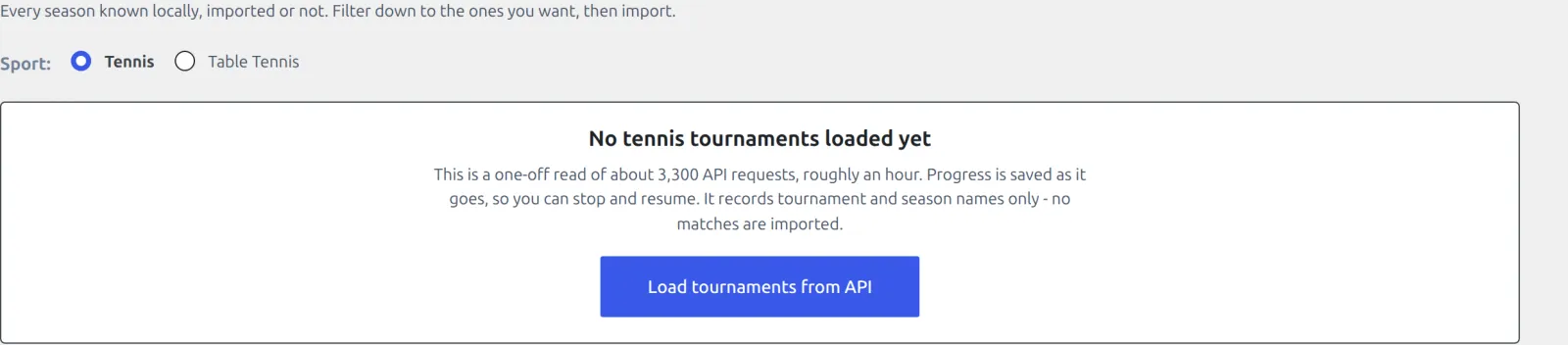
The load runs in two steps, Loading tournaments and then Loading seasons, with a progress bar for each. How long it takes depends on the sport:
| Sport | API requests | Time |
|---|---|---|
| Tennis | About 3,300 | About an hour |
| Table tennis | About 480 | About 10 minutes |
Tennis takes longer because the catalog covers every level of the sport, including thousands of ITF and Challenger events. Progress is saved as it goes. You can click Stop and come back later, and the page offers Resume or Start over.
When it’s done, you’ll see “Catalog ready” with the number of seasons to choose from.
Keep the Catalog Current
New tournaments and new editions show up all season, so the catalog needs a refresh now and then. Once it’s loaded, two buttons sit above the table:
| Button | What it does | When to use it |
|---|---|---|
| Update tournaments | Adds tournaments the API lists for the first time and new editions of the ones you have. It only checks tournaments that may have changed | Every week or two |
| Reload all tournaments | Reads every tournament again, at the same cost as the first load | Only when the catalog looks wrong |
Update runs in three steps. It loads the tournament lists, then finds new editions in the matches played from yesterday to the day after tomorrow, then checks only the tournaments that still need it. It skips a tournament that already has this year’s edition, and any tournament it checked in the last 7 days. A tournament that holds several editions a year is checked even when it has this year’s edition.
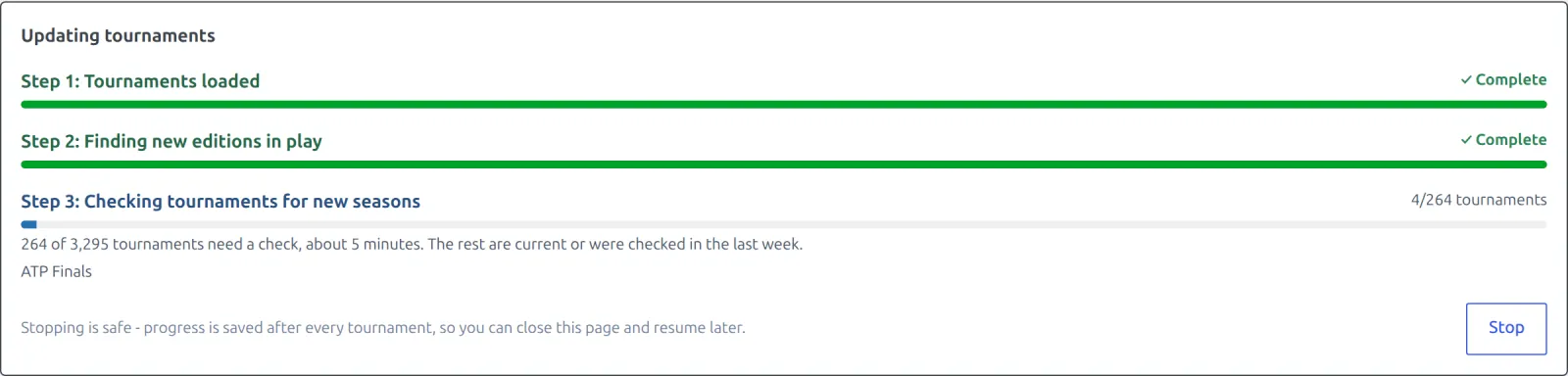
Before step 3 starts, the panel tells you how many tournaments need a check and about how long it’ll take. On a catalog that hasn’t been updated before, that’s a few hundred tournaments, which the panel puts at about 5 to 10 minutes. Run it again the same week and it’s done in about a minute. When it finishes, you’ll see how many new seasons it added.
The page shows when the catalog was last updated and flags it once it’s older than two weeks. Like the first load, an update can be stopped and resumed.
Step 2: Find a Season
The catalog table lists every season, imported or not. Use the filters above it to narrow it down:
| Filter | Use it for |
|---|---|
| Search | A tournament or season by name |
| All categories | One tour or circuit, for example ATP, WTA, Challenger or ITF |
| All years | One year |
| Any level | Tennis only: tournaments by ranking points, to find the bigger events |
| Any status | Imported or Not imported seasons |
| Activity | Seasons with matches yesterday, today, tomorrow, the day after, or this month |
The Points and Followers columns help you spot the important events. Games and Finished show how many matches the season has.
A Good First Pick
Set Activity to Active this month and pick one ATP or WTA singles event. It’s small enough to import in minutes and has full match stats, so you’ll see everything the plugin can show.
One Event, Several Tournaments
The API lists each draw of a big event as its own tournament. A Grand Slam shows up as men’s singles, women’s singles, men’s doubles, women’s doubles, mixed doubles, juniors and wheelchair events, each with its own season. Import the ones you want to cover. Most sites start with the two singles draws.
Step 3: Import the Season
- Click Import on the season’s row. To import several at once, tick them and click Import selected
- In the Import season dialog, choose the tasks
- Click Add to queue
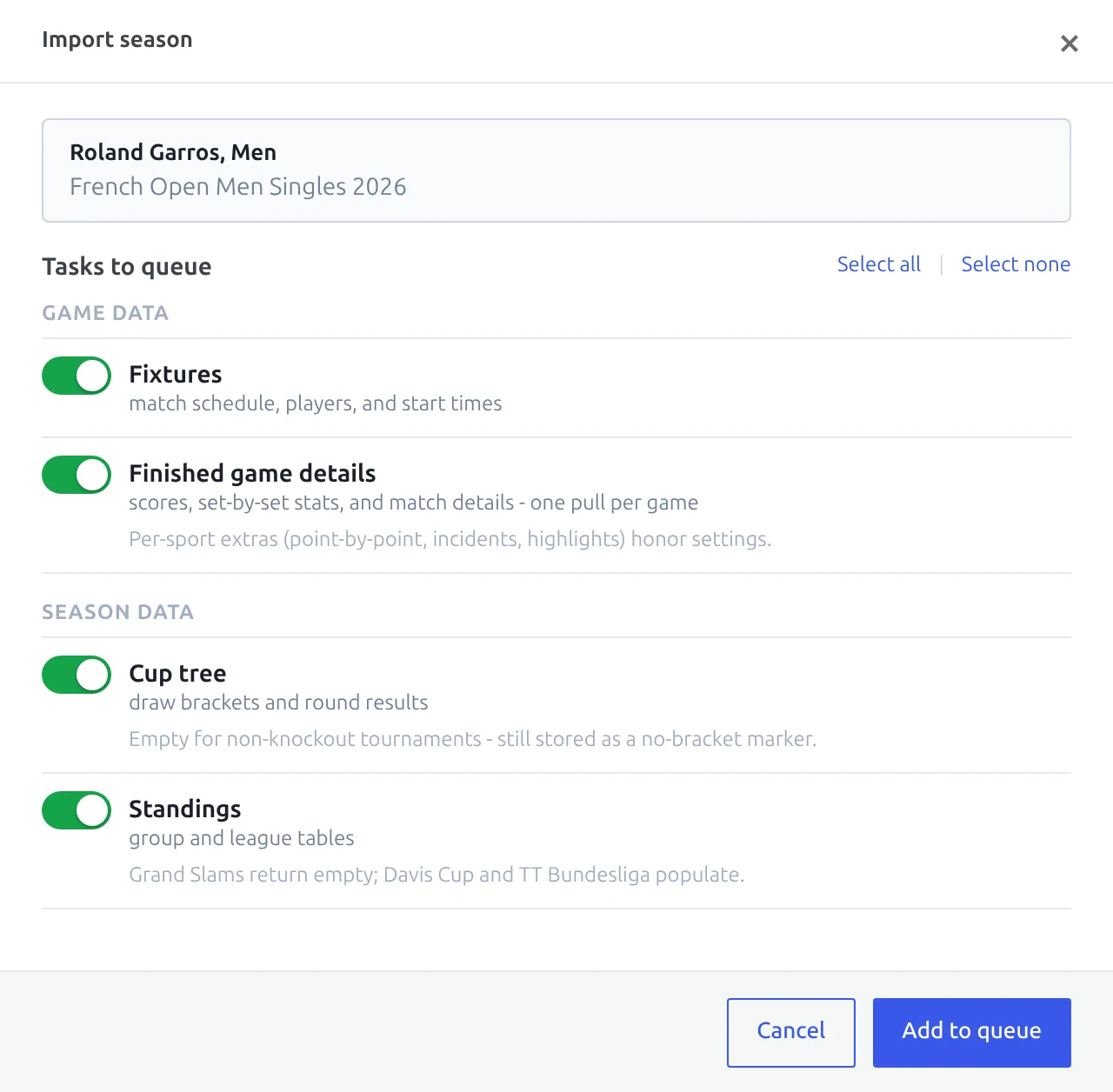
| Task | What it brings in | First import? |
|---|---|---|
| Fixtures | The match schedule, players and pairs, start times and results | Yes, needed for a new season |
| Finished game details | Set-by-set scores, match stats and point-by-point for every finished match | Yes, for a full match page |
| Cup tree | The draw bracket and round results | Yes, for knockout tournaments |
| Standings | Group and league tables | Only for events with groups, team competitions and table tennis leagues |
All four tasks start switched on. Turn off the ones you don’t need before you click Add to queue.
What to Import, and How Long It Takes
Import every tournament you want your player pages to cover. Most player numbers on your site are counted from the matches you imported: form, streaks, rivalries, serve and return figures, and the record by tour level. If you import three ATP events, a player’s record covers those three events and nothing else.
The provider’s season statistics are the exception, but they come with limits:
- They’re fetched by Hourly Refresh under Settings > Player Statistics, which is off by default
- Only for tennis players who appear in a match you imported and finished a match in the last two days. Table tennis has no season statistics
- A player’s season figures are their singles season. Doubles numbers belong to the pair
- The feed starts in 2023, so there’s nothing earlier to fetch
The Statistics Blocks guide lists which blocks read provider numbers and which count your imported matches.
Finished game details is the slow task, because it fetches every finished match one by one. With the default import options that’s up to 5 requests per match: the match, its stats, point-by-point, the momentum graph and head to head. These are real times from one site, with all four tasks ticked:
| Season | Finished matches | Import time |
|---|---|---|
| WTA Wuhan 2026, women’s doubles | 14 | under a minute |
| ATP Shanghai 2026, men’s doubles | 26 | 1.5 minutes |
| WTA Wuhan 2026, women’s singles | 52 | under 3 minutes |
| Wimbledon 2026, men’s singles | 239 | about 12 minutes |
| French Open 2026, men’s singles | 238 | about 13 minutes |
That’s about 19 finished matches a minute. A Grand Slam singles draw costs about 1,200 requests, so check your plan’s daily limit before you queue several. Start with a small season to see how it goes.
One Site at a Time per Key
If two sites share one RapidAPI key, run their imports one after the other. Both sites draw on the same per-second limit, so running them together slows both down and can stop an import with a rate-limit error.
Step 4: Watch the Task Queue
Queued work appears in the Task queue box at the top of the page. Each season shows a badge per task (FIX, FIN, CUP, STND) with its status. Use Pause and Resume to hold the queue, or Cancel all to drop it.

If a step fails, its badge turns red and the reason shows under the season. Click Retry to run only the failed steps again, or Remove to drop the row. A lost connection on a FIN, CUP or STND step is retried once by itself after 30 seconds. After one on a FIX step, Retry stays greyed out for two minutes, because the server may still be finishing that request.
Keep the Tab Open
Imports run in your browser tab. If you close it or navigate away, the queue stops, and the browser warns you first. Nothing is lost. Come back and click Update on the season to pick up where it stopped. Matches already imported aren’t duplicated.
When the queue is done, the season’s button changes from Import to Update, and the data on this site box above the table counts your tournaments, seasons, matches and finished matches.
🔍 Step 5: Check Your Data
Everything imported lands under the Hub Data menu:
| Menu item | What you’ll find |
|---|---|
| Matches | Every imported match, with players, score and status |
| Players | Singles players |
| Teams & Pairs | National teams for team events, and doubles pairs. A pair gets its own page once it has played 5 matches together (change this with Pair Post Threshold in API Config > Import Options) |
| Tournaments & Leagues | The tournaments you imported |
| Editions & Seasons | The seasons you imported |
Hover over any match, player or tournament and click View to open its page on your site. These pages are built for you from default layouts, so they work straight away. You can rearrange them later in Settings & Tools > Layout Builder.
If a page returns a 404 error, go to Settings > Permalinks and click Save Changes without changing anything.
Keep It Up to Date
An import is a snapshot. To keep scores, draws and standings current without clicking Update yourself, switch on Enable Background Sync in the Background Sync card on API & Import > API Config. It’s off by default. Once it’s on, the plugin uses WP-Cron to refresh your imported seasons on a schedule. Live scores have their own switch, Enable Live Import, in the Live Scores card.
Both rely on WP-Cron. On a site with few visitors, set up a real server cron job so scheduled tasks run on time. If the Background sync table on the Dashboard shows tasks as Stalled, WP-Cron isn’t running.
🆘 Troubleshooting
| Problem | Fix |
|---|---|
| The catalog load or update stopped halfway | Reopen the Import page and click Resume. Progress was saved |
| A new tournament or edition isn’t in the catalog | Click Update tournaments. If it’s still missing, use Reload all tournaments |
| Can’t switch between Tennis and Table Tennis | The switch is locked while tasks are running. Wait for the queue to finish, or pause and cancel it |
| A season imported, but match pages show no stats | Run Update on the season with Finished game details ticked |
| No bracket on the tournament page | Run Update with Cup tree ticked. Some smaller events have no draw data in the API |
| “Rate limit reached” during an import | Your RapidAPI plan has run out of requests. Wait for the quota to reset, or move to a plan without a daily limit |
📚 What’s Next
- Show your data on any page with shortcodes. Settings & Tools > Shortcodes has a builder that writes them for you
- Import more seasons. Tick several rows in the catalog and click Import selected to queue them in one go
- Turn on background sync once you’re happy with what’s imported