

Tennis API Hub gets all its data from AllSportsAPI2, a sports data API sold through RapidAPI. Before you can import anything, you need a RapidAPI account, a paid AllSportsAPI2 plan, and your API key saved in the plugin. This takes about five minutes.
Admin menu: API & Import > API Config
Step 1: Create a RapidAPI Account
- Go to rapidapi.com and sign up
- Verify your email address
- Add a payment method
RapidAPI is a marketplace. Your API key, plan and billing all live in your RapidAPI account, not in our plugin, and we never see them.
📡 Step 2: Subscribe to AllSportsAPI2
- Open AllSportsAPI2 on RapidAPI
- Click Subscribe (or open the Pricing tab)
- Pick a paid plan
One subscription covers both sports the plugin supports, tennis and table tennis. It’s the only provider Tennis API Hub works with, so there’s no provider to choose in the plugin.
The Free Plan Isn’t Enough
The free Basic plan only allows a small number of requests a day. Loading the tennis tournament catalog alone takes about 2,600 requests, before a single match is imported. You need a paid plan. At the time of writing, every paid AllSportsAPI2 plan has no daily request limit, starting with Pro at $19.99 a month. Check the Pricing tab for current prices.
Step 3: Copy Your API Key
- On the AllSportsAPI2 page, open the Playground (or your RapidAPI developer dashboard)
- Find the X-RapidAPI-Key value of your default application
- Copy it
The key is a long string of letters and numbers. It belongs to your RapidAPI account, not to one API, so it’s the same key you’d use for any other RapidAPI subscription.
🔑 Step 4: Add the Key to the Plugin
- In WordPress, go to API & Import > API Config. You land here right after activating your license
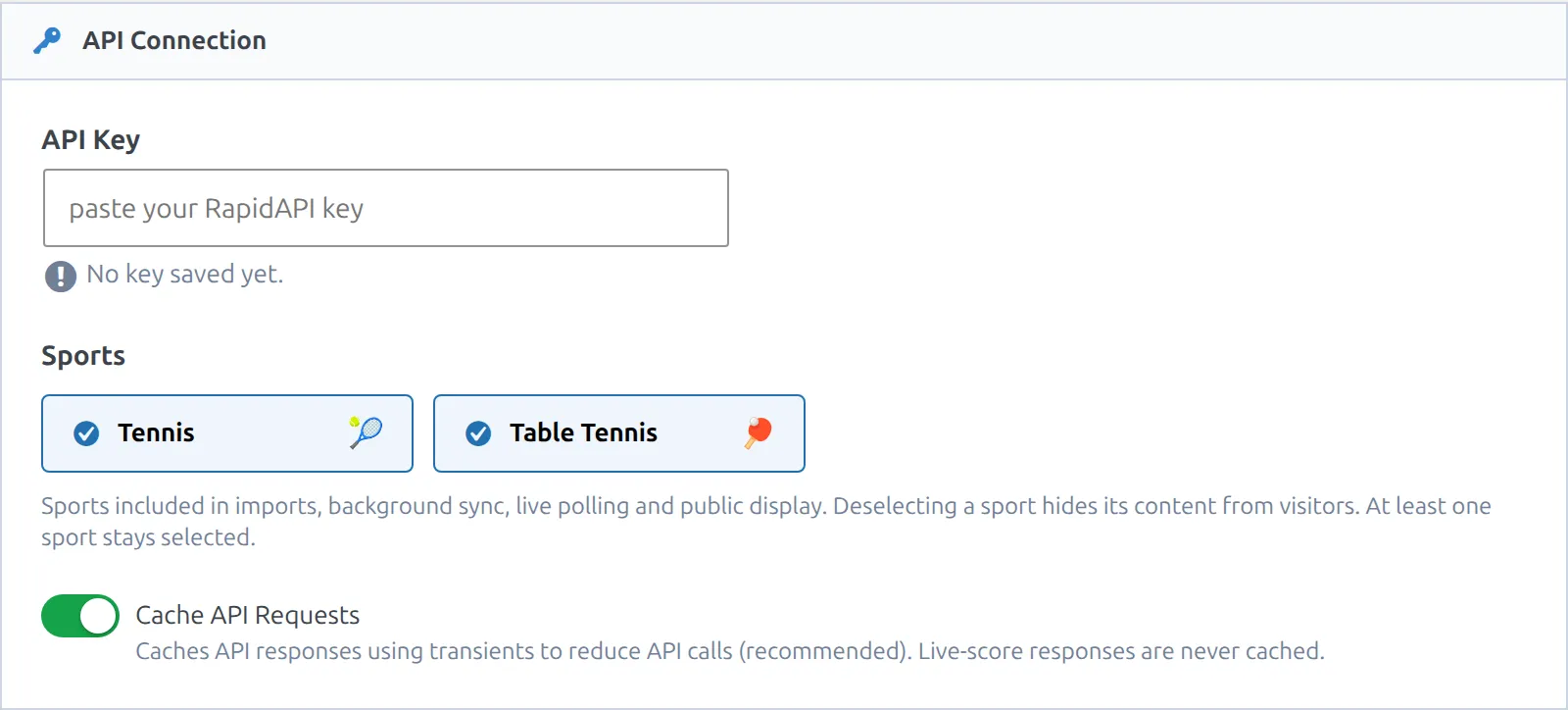
- In the API Connection card, paste your key into API Key
- Click Test Connection at the bottom of the page
- When the test passes, click Save Settings
Testing Doesn’t Save
Test Connection checks the key you typed without storing it, so you can try a key safely. Nothing is kept until you click Save Settings. Under the field you’ll then see “A key is currently saved.” To change the key later, paste a new one. Leave the field blank to keep the current key.
Test Results
| Message | What it means |
|---|---|
| Connection successful. | The key works. If your plan has a daily limit, the limit and what’s left today show below the message |
| Invalid API key or unauthorized. | The key is wrong, or this RapidAPI account isn’t subscribed to AllSportsAPI2 |
| Rate limit reached | Your plan’s daily or per-second quota is used up. Wait, or move to a bigger plan |
| No API key to test | The field is empty and no key has been saved yet |
| API returned status … | The API answered with an unexpected error. Try again in a few minutes. If it keeps happening, check the AllSportsAPI2 status on RapidAPI |
⚙️ Step 5: Choose Your Sports
The Sports cards in the same card turn each sport on or off. Both Tennis and Table Tennis are on by default.
- A sport that’s off is left out of imports, background sync and live scores
- Turning a sport off also hides its content from visitors. Nothing is deleted, so turning it back on brings it back
- At least one sport always stays on
If your site only covers tennis, switch Table Tennis off and click Save Settings. Background sync and live scores then skip it, and no table tennis pages show on your site.
Leave Cache API Requests on. It stores API answers for a short time so asking for the same thing twice doesn’t spend your quota twice. Live scores are never cached.
The Rest of the Page Can Wait
API Config has more cards below the connection: Import Options, Media & Images, Live Scores and Background Sync. The defaults are fine for a first import. Live scores and background sync both start switched off, so nothing runs on a schedule until you turn it on.
Keeping Your Key Safe
The key is stored in your WordPress database and only used on the server. It never appears in your pages or their source code, and the plugin’s System Info only says whether a key is set, never the key itself.
- Don’t post your key in public places, including support forums
- If you think it leaked, generate a new one in your RapidAPI dashboard and paste it into API Config
- Sharing one key between several sites works, but they all spend the same plan, so watch your usage in RapidAPI
🆘 Troubleshooting
| Problem | Fix |
|---|---|
| Test fails with a key you just copied | Check for spaces at the start or end of the key, and that your AllSportsAPI2 subscription is active on the same RapidAPI account |
| The test passed, but the Dashboard still says “Add your API key to start importing data.” | The key was tested, not saved. Paste it again and click Save Settings |
| The Dashboard says “The API daily limit has been reached.” | Your plan has a daily cap and it’s used up for today. It resets daily, or you can move to a plan without a daily limit |
📚 Next Step
Your connection is ready. Go to First Import to bring in your first tournament.