

Tennis API Hub is a paid WordPress plugin that imports tennis and table tennis data from AllSportsAPI2 into your site. There’s no free version and no WordPress.org listing. You install it by uploading the ZIP file from your purchase email.
System Requirements
| Requirement | Minimum | Recommended |
|---|---|---|
| WordPress | 6.5 | Latest |
| PHP | 7.4 | 8.1 or newer |
| WP-Cron | – | A real server cron job, if you plan to use background sync or live scores |
| Object cache | – | Redis or Memcached |
No other plugins needed. Tennis API Hub is self-contained. It doesn’t need Sports API Hub, Tennis Leagues or any third-party plugin.
You’ll also need a paid AllSportsAPI2 subscription on RapidAPI to import data. That’s covered in API Setup.
🚀 Step 1: Download the Plugin ZIP
After purchase, download the plugin ZIP from your purchase email or from the Freemius customer portal.
Important
Don’t unzip the file. WordPress expects the ZIP archive as it is.
Step 2: Upload and Install
- In your WordPress admin, go to Plugins > Add New Plugin
- Click Upload Plugin at the top of the page
- Click Choose File and pick the ZIP you downloaded
- Click Install Now
- When the upload finishes, click Activate Plugin
Alternative (FTP/SFTP): extract the ZIP and upload the anwp-tennis-api-hub folder to /wp-content/plugins/, then activate it on the Plugins page.
Step 3: Activate Your License
Right after activation, the plugin asks for your license key. Paste the key from your purchase email and click Activate License. You’ll land on the API Config page, ready for the next step.
See License Activation if the key isn’t accepted or you can’t find it.
Activation also sets up everything the plugin needs:
- Database tables for tournaments, seasons, players, pairs, matches and stats
- Page addresses for match, player and tournament pages (rewrite rules are flushed for you)
- Scheduled tasks for background sync and live scores. Both stay off until you switch them on
There’s no database setup to do by hand.
Admin Menus
Tennis API Hub adds four menus to your admin sidebar. Each one carries a small “TENNIS API HUB” badge so you can tell them apart from other plugins.
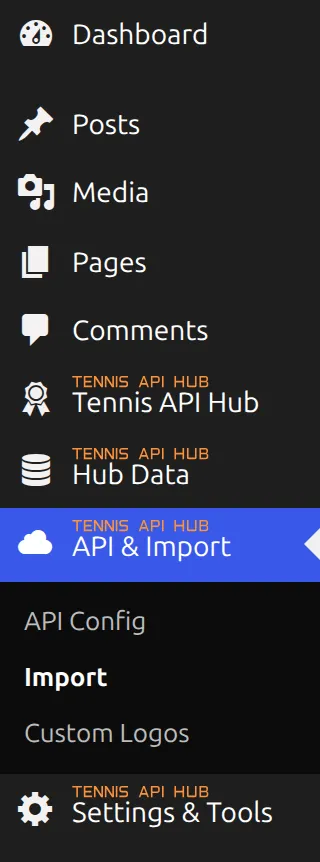
| Menu | What’s inside |
|---|---|
| Tennis API Hub | Dashboard, Support, Account (your license) |
| Hub Data | Tournaments & Leagues, Editions & Seasons, Teams & Pairs, Players, Matches |
| API & Import | API Config, Import, Custom Logos |
| Settings & Tools | Settings, Layout Builder, Translations, Shortcodes, Entity Links |
Everything under Hub Data is imported from the API, so there’s no “Add New” button: players, matches and tournaments come in through API & Import > Import.
The labels mix two sports’ words on purpose. Tennis says Tournament, Edition and Match, table tennis says League and Season. The Terminology page in Core Concepts explains the difference.
Updating the Plugin
With an active license, new versions show up like any other plugin update: on the Plugins page (click update now) and under Dashboard > Updates.
Database changes run on their own after an update. Your imported data stays where it is. The Tennis API Hub > Dashboard page lists what changed in the last three releases.
Tip
Back up your database before updating. A site with a few seasons imported holds a lot of rows, and a backup is the quickest way back if something goes wrong.
🆘 Troubleshooting Installation
| Problem | Fix |
|---|---|
| “The package could not be installed” | The ZIP is probably damaged or was unzipped and re-zipped. Download it again from your email or the Freemius customer portal |
| Upload size limit exceeded | Raise upload_max_filesize and post_max_size in your PHP settings, or upload by FTP |
| Admin menus don’t appear | Check the plugin is active and you’re logged in as an administrator. All four menus need the manage_options capability |
| Only the license screen shows under Tennis API Hub | The license isn’t activated yet. Paste your key and click Activate License |
| Match or player pages return 404 | Go to Settings > Permalinks and click Save Changes without changing anything |
📚 Next Steps
- API Setup – get your RapidAPI key and connect it
- First Import – import your first tournament